I wanted to show you how I built a simple sensor that can send weather information like temperature, humidity, and air pressure over a long distance without using Wi-Fi. I recently used this for a presentation to demonstrate what's possible with a technology called LoRaWAN, and I thought it would be perfect to share with you here as well.
The whole idea is to have a device that runs on batteries for a long time. To save power, it spends most of its life in a deep sleep mode. It only wakes up every few minutes to take a measurement and send that data through a LoRa gateway to a cloud network called The Things Network, or TTN for short.
In this article, I'll walk you through all the steps I took, from the components I used and how I wrote the code, to how I set everything up on TTN so you can see the data. I'll also show you how it works in a live demo and talk about its power usage.
This video is sponsored by Altium Develop.
How the Project Works
The main goal of my project is to have a device that runs on its own for a long time without me needing to touch it. To do this, I designed it to spend most of its life in a very deep sleep, almost like it's turned completely off. It only wakes up for a short time when it needs to do its job. When it wakes up, the first thing it does is figure out if this is its very first time powering on or if it's just another regular wake-up from its nap.
If it's the first boot, it introduces itself to the LoRaWAN network, which is like getting permission to talk to the cloud. Once it's joined, it quickly reads the temperature, humidity, and pressure from the sensor. It packages this data up and sends it wirelessly through the LoRa module to a gateway, which then passes it along to the internet.
Right after it gets a confirmation that the data was received, it immediately goes back into that deep sleep mode. It will stay asleep for a set amount of time, which I set to two minutes for this demo. After that time is up, it wakes up again and the whole cycle repeats, sending new data without having to reintroduce itself to the network every single time.
Setting Up the Hardware
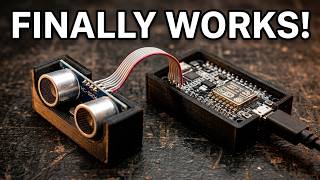
To build this, I started with a NodeMCU board, which is a small and easy-to-use microcontroller that acts as the brain of the project. I connected this to a BME680 sensor, which is the component that actually measures the temperature, humidity, and air pressure. The most important part is the RYLR993 LoRa module, which handles the long-range wireless communication. I connected this LoRa module to the NodeMCU using two digital pins, which lets them talk to each other.
There's one special hardware trick needed for the deep sleep to work properly with the NodeMCU. I had to connect a wire from the D0 pin directly to the RST (reset) pin on the board. This connection acts like an alarm clock and when the device wakes up from deep sleep, this wire sends a signal to reset the brain so it starts running my code from the very beginning again.
For power, you can simply plug the NodeMCU into a computer with a USB cable for testing. When I wanted to test how much power it uses, I connected it to an external power supply. I used a portable power bank that can deliver different voltages, set it to 5 volts, and attached it to the NodeMCU's power pins using wires with alligator clips. This let me see how much current the entire device draws while it's running and when it's sleeping.
Arduino Code for the Node
I wrote the code in the Arduino IDE, which is a free program that lets you write instructions for microcontrollers. The code first includes some special libraries, which are like pre-written sets of instructions that tell the board how to talk to the BME680 sensor and the LoRa module. The most important part of the code is where I put in the unique keys for The Things Network. These keys are like a secret handshake that allows only my device to join the network and send data to my account.
In the main setup part of the code, I tell the device what to do every time it wakes up. It first checks if it's the first time it has ever been turned on. If it is, it sends a command to the LoRa module to join the network. If it has already joined, it just goes ahead and reads the sensor. It takes the measurements and packages them into a small, efficient bundle of data. Then, it tells the LoRa module to send this bundle wirelessly.
After the data is sent and confirmed, the code instructs the NodeMCU to go into deep sleep mode for a specific amount of time. I set this to two minutes for the demo. The code never actually gets to the main loop because the deep sleep command happens right at the end of the setup, which restarts the whole process after it wakes up. I've shared the complete code for you to use, and you can find a link to it in the description below the video.
The full Arduino code is available below.
/*
 * LoRaWAN Temperature Sensor with Deep Sleep
 * Blagojce Kolicoski - Taste The Code
 * https://www.youtube.com/@TasteTheCode
 *
 * ESP8266 NodeMCU based LoRaWAN sensor with BME680 for temperature, humidity, pressure, and gas resistance.
 * Uses RYLR993 LoRaWAN module (OTAA mode).
 *
 * Power Saving Features:
 * - Sends data once on startup
 * - Goes into deep sleep for 2 minutes between transmissions
 * - Maintains LoRaWAN session across sleep cycles (module stays powered)
 * - Only rejoins if send fails with AT_NO_NETWORK_JOINED error
 * - Uses ADR (Adaptive Data Rate) for optimal power consumption
 * - Configures credentials only on first boot (saved in module flash)
 *
 * Hardware Requirements:
 * - ESP8266 NodeMCU
 * - BME680 sensor (I2C)
 * - RYLR993 LoRaWAN module connected to D6 (TX) and D7 (RX)
 * - Connect RST to D0 for deep sleep wake-up
 *
 * Important Notes:
 * - Connect RST pin to D0 pin for deep sleep wake-up functionality!
 * - The RYLR993 does NOT have an AT+NJS command - join status is tracked via events
 * - ESP8266 deep sleep does NOT reset the RYLR993, so session persists
 * - Module credentials are persisted in flash and only need to be set once
 */

#include <SoftwareSerial.h>
#include <Wire.h>
#include <Adafruit_Sensor.h>
#include "Adafruit_BME680.h"

#define RXD2 D7
#define TXD2 D6
#define SEALEVELPRESSURE_HPA (1013.25)

// LoRaWAN OTAA Credentials
#define LORAWAN_DEVEUI "00:00:00:00:00:00:00:00"
#define LORAWAN_APPEUI "00:00:00:00:00:00:00:00"
#define LORAWAN_NWKKEY "00:00:00:00:00:00:00:00:00:00:00:00:00:00:00:00"

// Deep sleep configuration
#define SLEEP_TIME_MINUTES 2
#define SLEEP_TIME_MICROSECONDS (SLEEP_TIME_MINUTES * 60 * 1000000ULL)

SoftwareSerial mySerial(RXD2, TXD2);
Adafruit_BME680 bme;

String content = "";
bool isJoined = false;
bool needsRejoin = false;

void setup()
{
  Serial.begin(115200);
  mySerial.begin(9600);
  delay(1000);
  pinMode(0, INPUT_PULLUP);
  pinMode(2, OUTPUT);
  digitalWrite(2, HIGH);

  Serial.println("=== ESP8266 LoRaWAN Deep Sleep Sensor ===");
  Serial.print("Wake up reason: ");
  Serial.println(ESP.getResetReason());

  Serial.println("Waiting for LoRa module to initialize...");
  delay(1000);

  unsigned long startTime = millis();
  while (millis() - startTime < 3000) {
    readSerial();
    delay(100);
  }

  bool isFirstBoot = (ESP.getResetReason() != "Deep-Sleep Wake");

  if (isFirstBoot) {
    Serial.println("First boot - will join network and set credentials");
  } else {
    Serial.println("Wake from deep sleep - assuming session persists");
    isJoined = true;
  }

  Serial.println("BME680 initialization...");
  if (!bme.begin()) {
    Serial.println("Could not find a valid BME680 sensor, check wiring!");
    while (1);
  }

  bme.setTemperatureOversampling(BME680_OS_8X);
  bme.setHumidityOversampling(BME680_OS_2X);
  bme.setPressureOversampling(BME680_OS_4X);
  bme.setIIRFilterSize(BME680_FILTER_SIZE_3);
  bme.setGasHeater(320, 150);

  Serial.println("BME680 initialized successfully!");

  if (isFirstBoot) {
    joinLoRaWANNetwork(true);
  }

  if (isJoined) {
    sendSensorDataAndSleep();
  } else {
    Serial.println("Join failed. Retrying after sleep...");
    goToDeepSleep();
  }
}

void loop() {
  Serial.println("ERROR: Unexpected loop entry!");
  delay(1000);
  goToDeepSleep();
}

void sendSerial(String content) {
  content.trim();
  Serial.println();
  content = content + "\r\n";
  char* bufc = (char*) malloc(sizeof(char) * content.length() + 1);
  content.toCharArray(bufc, content.length() + 1);
  mySerial.write(bufc);
  free(bufc);
  delay(100);
  readSerial();
}

void readSerial() {
  if (mySerial.available()) {
    String incomming = mySerial.readString();
    Serial.println(incomming);
  }
}

void checkJoinStatus() {
  if (mySerial.available()) {
    String response = mySerial.readString();
    Serial.print("LoRa Response: ");
    Serial.println(response);

    if (response.indexOf("+EVT:JOINED") != -1) {
      isJoined = true;
      digitalWrite(2, HIGH);
      Serial.println("*** NETWORK JOINED SUCCESSFULLY ***");
    }

    if (response.indexOf("+EVT:JOIN_FAILED") != -1) {
      isJoined = false;
      Serial.println("*** JOIN FAILED - Will retry ***");
    }
  }
}

void sendBME680Data() {
  if (!isJoined) {
    Serial.println("ERROR: Cannot send data - not joined to network!");
    return;
  }

  byte payload[12];

  int16_t temp = (int16_t)(bme.temperature * 100);
  payload[0] = (temp >> 8) & 0xFF;
  payload[1] = temp & 0xFF;

  uint16_t hum = (uint16_t)(bme.humidity * 100);
  payload[2] = (hum >> 8) & 0xFF;
  payload[3] = hum & 0xFF;

  uint32_t press = (uint32_t)(bme.pressure);
  payload[4] = (press >> 24) & 0xFF;
  payload[5] = (press >> 16) & 0xFF;
  payload[6] = (press >> 8) & 0xFF;
  payload[7] = press & 0xFF;

  uint32_t gas = (uint32_t)(bme.gas_resistance);
  payload[8] = (gas >> 24) & 0xFF;
  payload[9] = (gas >> 16) & 0xFF;
  payload[10] = (gas >> 8) & 0xFF;
  payload[11] = gas & 0xFF;

  Serial.println("===========================================");
  Serial.print("Sending - Temp: ");
  Serial.print(bme.temperature);
  Serial.print("°C, Hum: ");
  Serial.print(bme.humidity);
  Serial.print("%, Press: ");
  Serial.print(bme.pressure / 100.0);
  Serial.print(" hPa, Gas: ");
  Serial.print(bme.gas_resistance / 1000.0);
  Serial.println(" KOhms");

  String hexData = "";
  for (int i = 0; i < 12; i++) {
    if (payload[i] < 0x10) hexData += "0";
    hexData += String(payload[i], HEX);
  }
  hexData.toUpperCase();

  String myString = "AT+SEND=1:1:" + hexData + "\r\n";
  char* buf = (char*) malloc(sizeof(char) * myString.length() + 1);
  Serial.print("AT Command: ");
  Serial.print(myString);
  myString.toCharArray(buf, myString.length() + 1);
  mySerial.write(buf);
  free(buf);

  Serial.println("Waiting for send confirmation...");
  unsigned long sendStartTime = millis();
  bool sendConfirmed = false;

  while ((millis() - sendStartTime < 20000) && !sendConfirmed) {
    if (mySerial.available()) {
      String response = mySerial.readString();
      Serial.print("Send Response: ");
      Serial.println(response);

      if (response.indexOf("+EVT:SEND_CONFIRMED") != -1) {
        Serial.println("Send CONFIRMED by network!");
        sendConfirmed = true;
      } else if (response.indexOf("+EVT:TX_TIMEOUT") != -1 || response.indexOf("+EVT:SEND_TIMEOUT") != -1) {
        Serial.println("Send TIMEOUT - message not acknowledged!");
        break;
      } else if (response.indexOf("+EVT:SEND_DONE") != -1) {
        Serial.println("Send completed (unconfirmed)!");
        sendConfirmed = true;
      } else if (response.indexOf("AT_NO_NETWORK_JOINED") != -1) {
        Serial.println("ERROR: Network not joined - will rejoin!");
        isJoined = false;
        needsRejoin = true;
        break;
      }
    }
    delay(100);
  }

  if (!sendConfirmed) {
    Serial.println("WARNING: No send confirmation received!");
  }
  Serial.println("===========================================");
}

void joinLoRaWANNetwork(bool setCredentials) {
  Serial.println("=== LoRaWAN Join ===");

  if (setCredentials) {
    Serial.println("Setting credentials...");
    sendSerial("AT+DEUI=" LORAWAN_DEVEUI);
    delay(300);
    sendSerial("AT+APPEUI=" LORAWAN_APPEUI);
    delay(300);
    sendSerial("AT+NWKKEY=" LORAWAN_NWKKEY);
    delay(500);

    sendSerial("AT+ADR=1");
    delay(300);
    sendSerial("AT+TXP=0");
    delay(300);
  } else {
    Serial.println("Using saved credentials from flash...");
  }

  Serial.println("Joining network (OTAA)...");
  sendSerial("AT+JOIN=1");

  unsigned long joinStartTime = millis();
  while (!isJoined && (millis() - joinStartTime < 30000)) {
    checkJoinStatus();
    delay(500);
  }

  if (isJoined) {
    Serial.println("Successfully joined network!");
    delay(500);
  } else {
    Serial.println("Join failed - will retry after sleep");
    isJoined = false;
  }
}

void sendSensorDataAndSleep() {
  Serial.println("=== Sending Data ===");

  if (bme.performReading()) {
    sendBME680Data();

    if (needsRejoin) {
      Serial.println("Attempting to rejoin network...");
      joinLoRaWANNetwork(false);
      needsRejoin = false;

      if (isJoined) {
        Serial.println("Retrying send after rejoin...");
        if (bme.performReading()) {
          sendBME680Data();
        }
      }
    }

    Serial.println("Data sent!");
  } else {
    Serial.println("Sensor read failed!");
  }

  delay(1000);
  goToDeepSleep();
}

void goToDeepSleep() {
  Serial.println("Sleeping...");
  digitalWrite(2, LOW);
  Serial.flush();
  ESP.deepSleep(SLEEP_TIME_MICROSECONDS);
}
Connecting to The Things Network (TTN)
To get my sensor data into the cloud, I use a service called The Things Network, or TTN. The first thing I did there was create an application, which is like a folder that holds all the devices for a specific project. Inside that application, I registered a new device, which involved giving it a unique ID and copying those important security keys from TTN directly into my code. These keys make sure that only my device can send data to my application.
The next important step was to teach TTN how to understand the data my device sends. The sensor information is sent as a string of raw bytes to save space, which looks like gibberish to a person. So, I wrote a small decoder function right in my TTN application. This decoder is a simple script that takes those bytes and translates them back into readable numbers for temperature, humidity, and pressure.
Once the decoder is in place, you can see it working. Whenever my device sends a payload, it shows up in the TTN console. Instead of just showing the raw bytes, it displays the actual values neatly labeled, which confirms that everything is working correctly from the sensor all the way to the cloud.
The full code of the decoder is available below.
// TTN Payload Decoder for BME680 Sensor
// Payload format: 12 bytes
// [0-1]  Temperature (int16, °C * 100)
// [2-3]  Humidity (uint16, % * 100)
// [4-7]  Pressure (uint32, Pa)
// [8-11] Gas Resistance (uint32, Ohms)

function decodeUplink(input) {
 var bytes = input.bytes;
 var decoded = {};

 // Check if payload length is correct
 if (bytes.length !== 12) {
  return {
   data: {},
   errors: ["Invalid payload length: expected 12 bytes, got " + bytes.length],
   warnings: []
  };
 }

 // Temperature (int16, signed, °C * 100)
 var tempRaw = (bytes[0] << 8) | bytes[1];
 // Convert to signed integer
 if (tempRaw > 32767) {
  tempRaw -= 65536;
 }
 decoded.temperature = tempRaw / 100.0;

 // Humidity (uint16, % * 100)
 var humRaw = (bytes[2] << 8) | bytes[3];
 decoded.humidity = humRaw / 100.0;

 // Pressure (uint32, Pa)
 var pressRaw = (bytes[4] << 24) | (bytes[5] << 16) | (bytes[6] << 8) | bytes[7];
 decoded.pressure = pressRaw / 100.0; // Convert to hPa

 // Gas Resistance (uint32, Ohms)
 var gasRaw = (bytes[8] << 24) | (bytes[9] << 16) | (bytes[10] << 8) | bytes[11];
 decoded.gas_resistance = gasRaw / 1000.0; // Convert to KOhms

 // Calculate approximate altitude (optional)
 // Using standard atmosphere formula: h = 44330 * (1 - (P/P0)^(1/5.255))
 // where P0 = 101325 Pa (sea level pressure)
 var altitude = 44330 * (1.0 - Math.pow(pressRaw / 101325.0, 0.1903));
 decoded.altitude = Math.round(altitude * 100) / 100;

 return {
  data: decoded,
  warnings: [],
  errors: []
 };
}

// For testing locally with Node.js
if (typeof module !== 'undefined' && module.exports) {
 module.exports = { decodeUplink };

 // Test example
 console.log("Testing decoder with sample data:");
 var testInput = {
  bytes: [0x0A, 0x8C, 0x17, 0x70, 0x00, 0x01, 0x8B, 0xD0, 0x00, 0x05, 0x30, 0xA0]
 };
 console.log("Input bytes:", testInput.bytes.map(b => "0x" + b.toString(16).toUpperCase()).join(" "));
 var result = decodeUplink(testInput);
 console.log("Decoded data:", JSON.stringify(result.data, null, 2));
}
Testing and Seeing the Results
For the first test, I simply plugged the device into my computer with a USB cable. This let me open a serial monitor on my screen to see the messages from the board as it worked. I could watch it wake up, join The Things Network, and then send the sensor data. A little blue light on the LoRa module lit up to show me when it was successfully joining and sending.
Right after I saw the confirmation on my serial monitor, I switched over to my TTN application dashboard to check the live data. I could see that the data had arrived, and because of the decoder I set up, it was displayed as clear values for temperature and humidity instead of a confusing string of numbers. After sending the data, the device went into deep sleep for two minutes, and I saw the whole process repeat automatically when it woke up again.
I also wanted to see how much power it used, so I connected it to a portable power supply that shows the current draw. I watched the power usage jump up to about 40 milliamps for a brief moment when it was sending data, and then drop down to a very low level when it went back to sleep. This cycle of waking, sending, and sleeping is the key to making the device run for a long time on a battery.
Power Use and Improvements
When I measured the power, I found that my device uses very little energy when it's in deep sleep (~8mA), but the NodeMCU board I used for this demo isn't the most power-efficient option. It still has components on it that draw a small amount of power even when sleeping. While it works perfectly for showing how the system operates, you could build a version that runs for much longer on a battery by choosing a different microcontroller.
A great alternative is the ESP32, which has much better built-in sleep modes and doesn't need the extra wire between the pins to wake up properly. This simple change would significantly reduce the power consumption. The LoRa module itself is already very efficient, using almost no power when it's idle, which is a good starting point for a battery-powered project.
If you want real-time control, where you can send a command to the device at any moment and it listens immediately, you would need to change it from a Class A to a Class C device. This means it would use more power because the receiver is on more often. So, you always have to choose between long battery life and the ability to control the device instantly. Let me know in the comments if you'd like me to explore a low-power or a real-time control version in a future video.
Next Steps
Now that you've seen the basic demo, the next step is to try building your own. You can start by gathering the parts using the list I provided and uploading the code to your own NodeMCU. The most satisfying part is registering your own device on The Things Network and seeing your first data points appear on the map. This hands-on experience is the best way to learn how all the pieces fit together.
Once you have it working, you can think about how to adapt it for your own needs. You could change the sensor to measure something else, like soil moisture for plants or light levels. You could also adjust the sleep time in the code, making it wake up every hour instead of every two minutes to save even more power if your application doesn't need frequent updates.
I'm always working on new projects, so let me know what you're interested in. If you want to see a version that uses an ESP32 for better battery life, or one that can receive commands instantly, let me know in the comments. Your feedback helps me decide what to build and share next. Thanks for following along, and I can't wait to see what you create.
Most of the links below are affiliate links. This means if you click through and make a purchase, I may earn a small commission at no extra cost to you. This is a simple way to support my work and helps me continue creating free content for you. Thanks for your support!
Parts Used in the Video
- ESP8266 (NodeMCU) - https://s.click.aliexpress.com/e/_c4O3aYmj
- BME680 Environmental Sensor - https://s.click.aliexpress.com/e/_c4MHm6uR
- REYAX RYLR993 LoRa Module - https://reyax.com/products/RYLR993_Lite
- Jumper Wires & Breadboard - https://s.click.aliexpress.com/e/_c3kAulBh
- Pocket PD Power Supply by Sentilab - https://hackaday.io/project/194295-pocketpd-usb-c-portable-bench-power-supply
Other tools and modules for projects:
- Heltec Lora 32 board - https://s.click.aliexpress.com/e/_c3viupVN
- T-Beam ESP32 LoRa Module - https://s.click.aliexpress.com/e/_c4O8dyET
- Solar Meshtastic Node - https://s.click.aliexpress.com/e/_c3suRwOb
- Soldering Station - https://s.click.aliexpress.com/e/_c3zRMuOT
- Multimeter - https://s.click.aliexpress.com/e/_c44i5gzv
- Bench Power Supply - https://s.click.aliexpress.com/e/_c41iTw0B